How to Create a Workshop Package in Foundslot
A workshop is a group session on dates you choose: a pottery class, a photography walk, a training day. Each person books a seat, and you decide how many seats there are and how many people you need for a date to go ahead.
As an example, we’ll set up a 3-hour Wheel-throwing for beginners class for up to 8 people.
Step 1: Create the workshop
Go to Packages, click New package and, under Start from scratch, choose Workshop. (Some professions also have a ready-made workshop preset further down.)
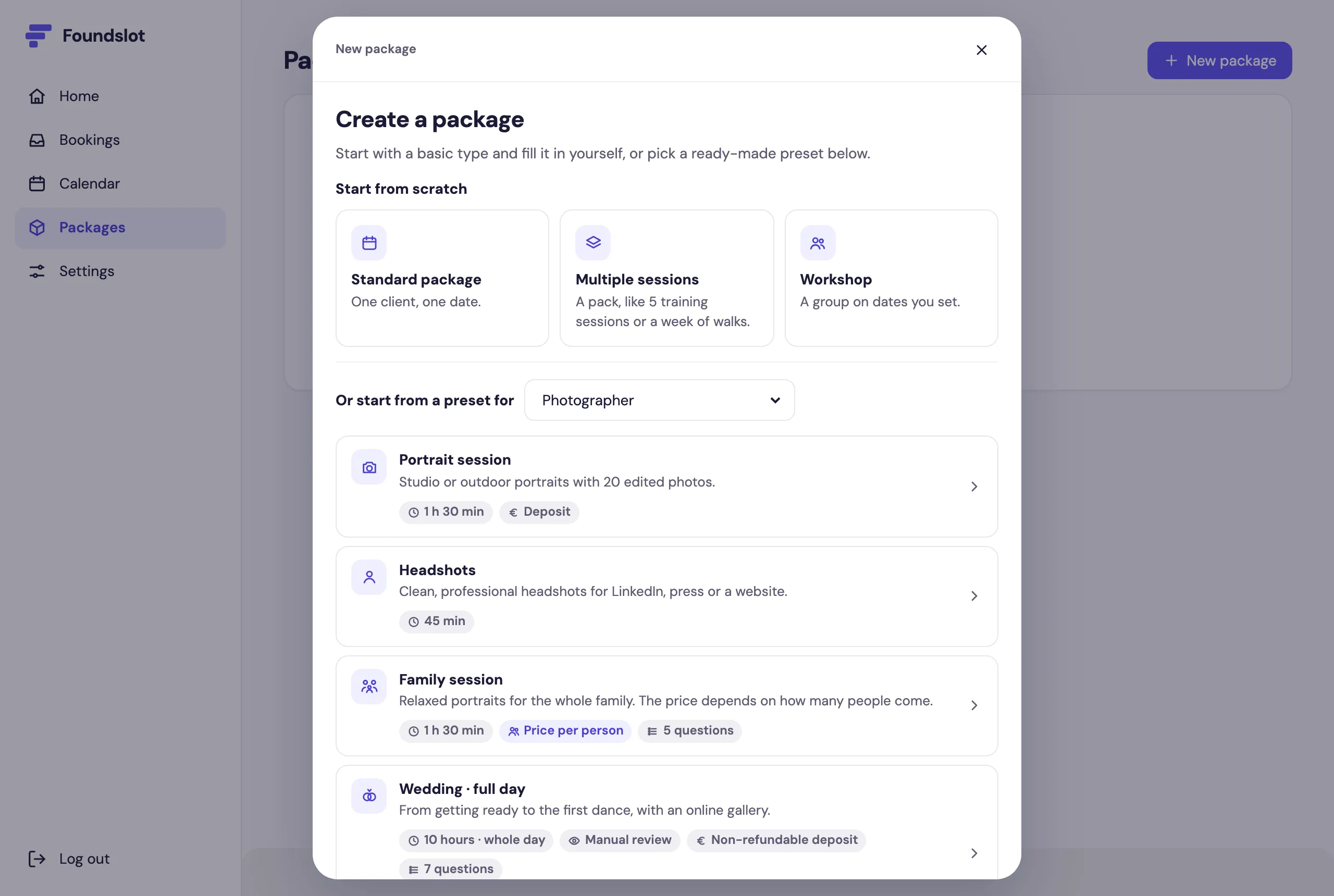
The editor opens on the Details tab. The Ready to publish checklist on the right shows what’s still missing.
Step 2: Add the basics and price
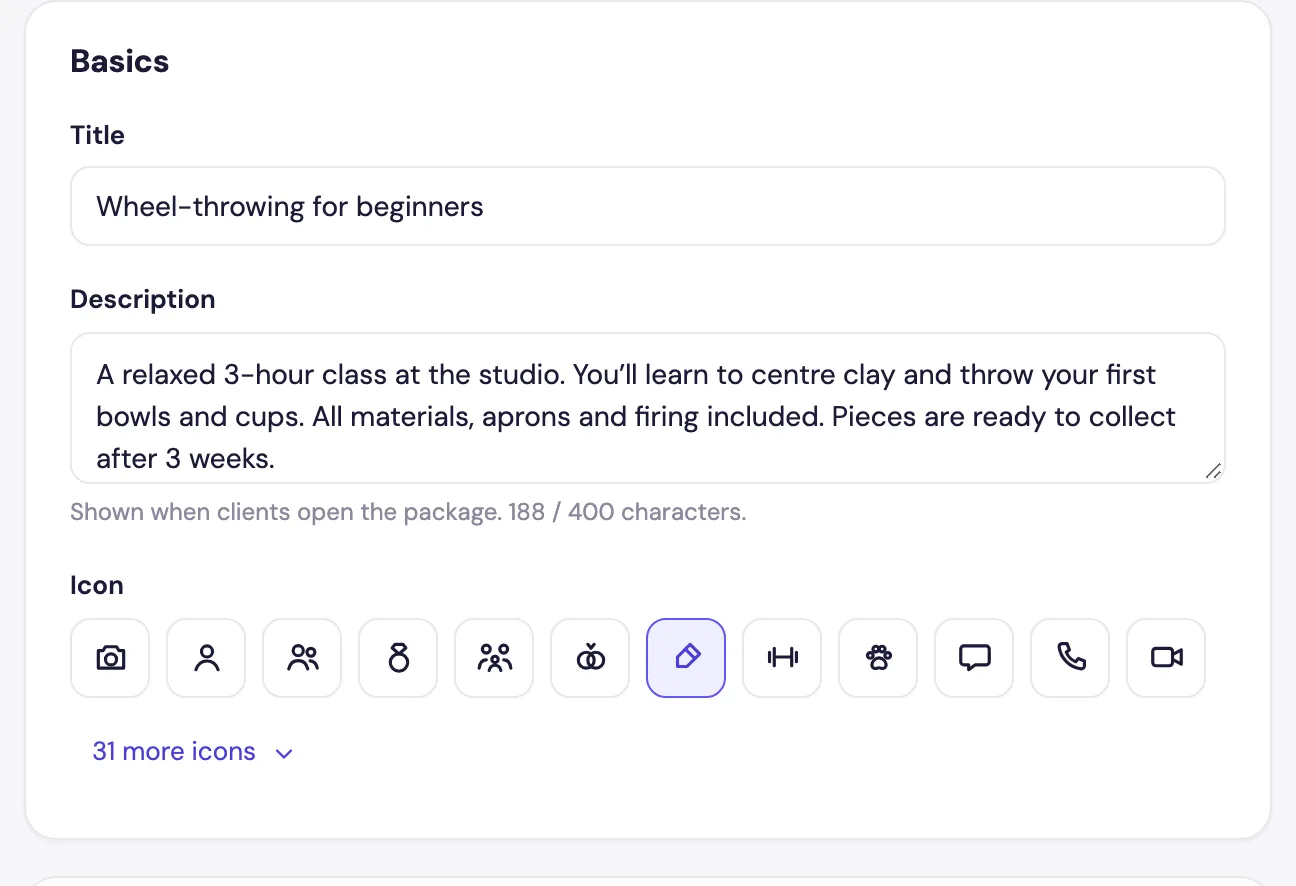
In Basics, add a Title, a Description (what’s included and what people take home) and an Icon.
In Price and payment, enter the Price per attendee. Workshops always use a fixed price.
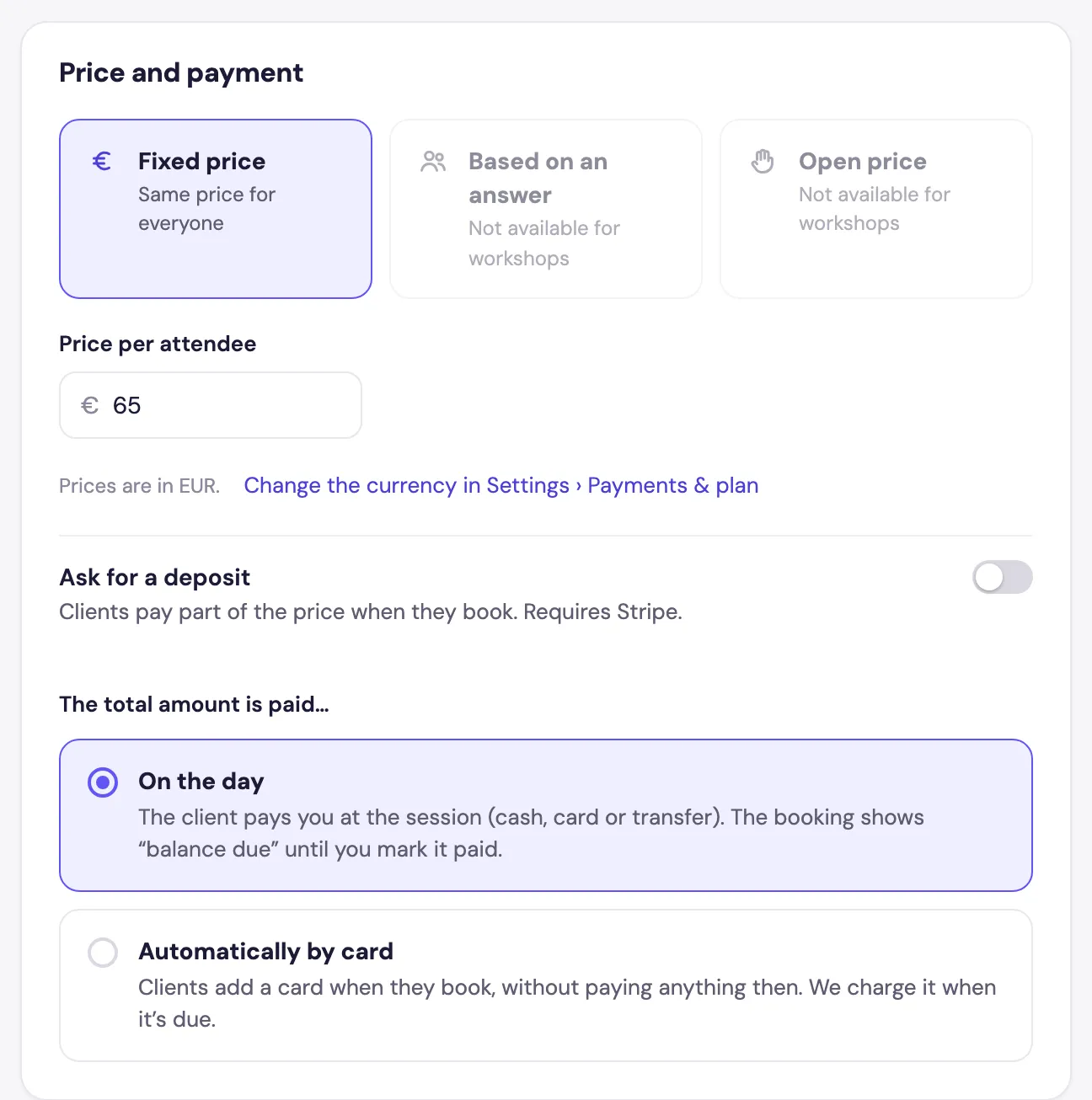
If you’ve connected Stripe, you can turn on Ask for a deposit. Clients then pay part of the price when they book, and the rest either On the day or Automatically by card when it’s due.
Step 3: Set the duration and confirmation
In Time, set how long the workshop lasts. Every date uses this duration.
Under How bookings are confirmed, choose Automatic (a booking is confirmed as soon as there’s a free seat) or Manual review (you accept or decline each request first). Automatic suits most workshops.
Good to know: A request waiting for your answer holds its seat, so two people can never get the last one.
Step 4: Choose seats and a minimum
Scroll down to the Sessions card, where Workshop is already selected.
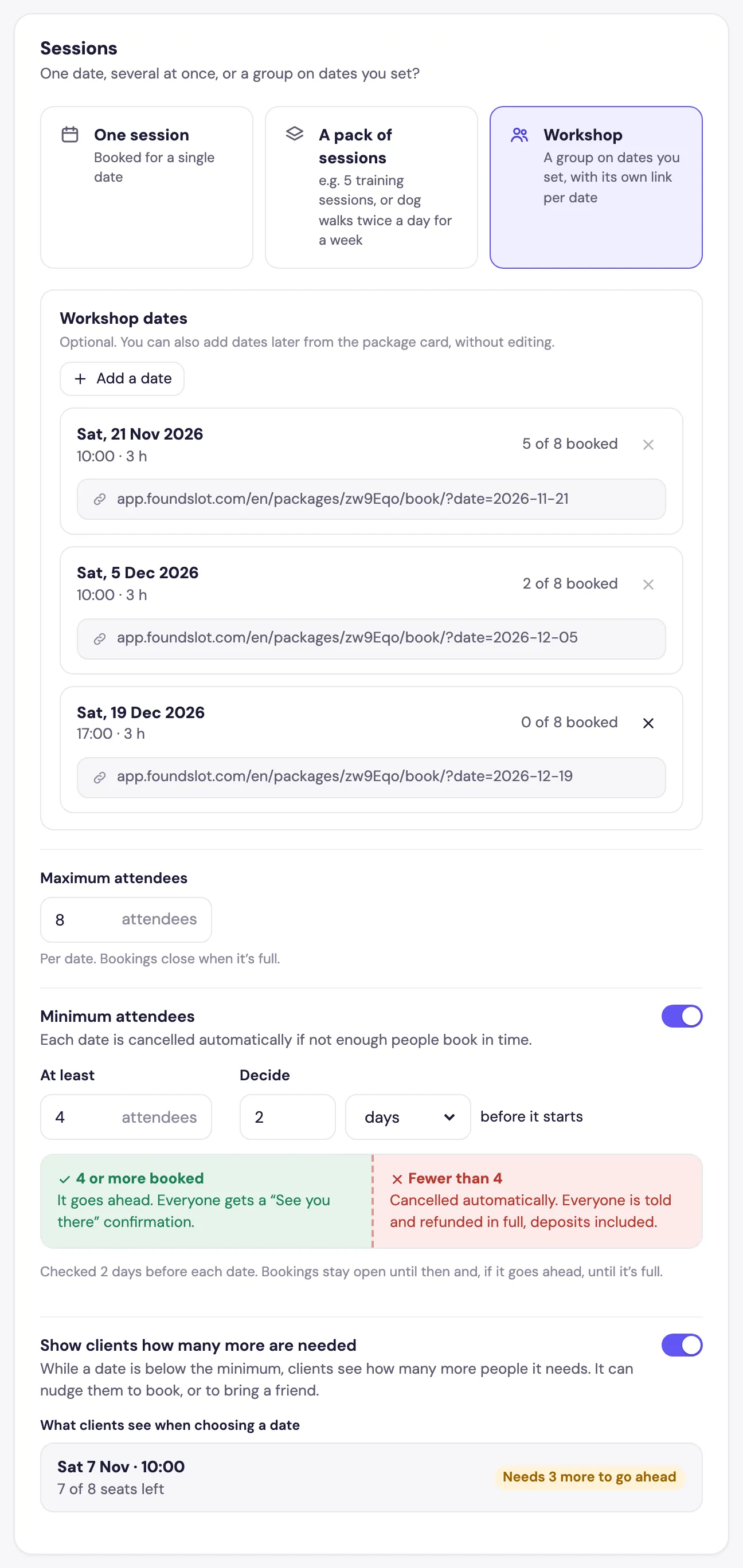
- Maximum attendees: seats per date. Bookings close when a date is full.
- Minimum attendees (optional): how many people you need (At least), and when Foundslot should check (Decide, in days or hours before the start).
At the decision time, if the minimum is reached the date goes ahead and everyone gets a “See you there” confirmation. If not, the date is cancelled automatically, and everyone is told and refunded in full, deposits included.
Turn on Show clients how many more are needed to display “Needs 3 more to go ahead” on dates below the minimum. It’s a nudge to book, or to bring a friend.
Step 5: Add your dates
In the same card, click Add a date, choose the Date and Start time, and click Add date. Each date gets its own link, so you can promote one date at a time.
Dates are optional: you can publish now and add them later from the package card.
Plan note: The Free plan shows one upcoming workshop date at a time. Pro lets you schedule as many as you like.
Step 6: Set the location and policies
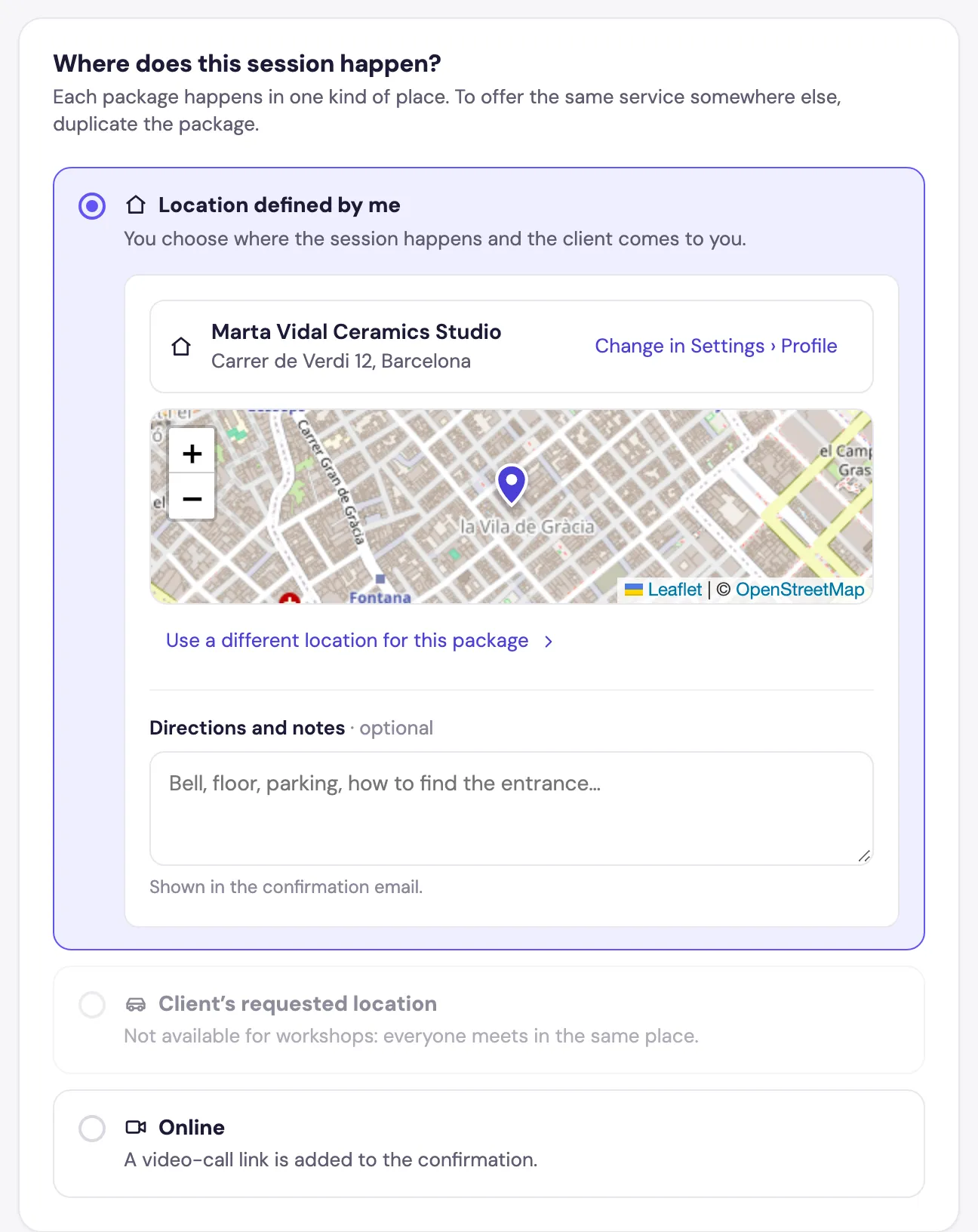
On the Location tab, choose:
- Location defined by me: your studio address from Settings › Profile, or Use a different location for this package. Add Directions and notes for the confirmation email.
- Online: everyone on the same date gets the same video-call link.
On the Policies tab, set:
- Switching dates: whether clients can move to another date with free seats, and up to how many hours before.
- Free cancellation until: how many days before the workshop clients can cancel for free.
- Later cancellations: let them cancel for free, or don’t allow it online. With a deposit you’ll see more options, such as keeping it.
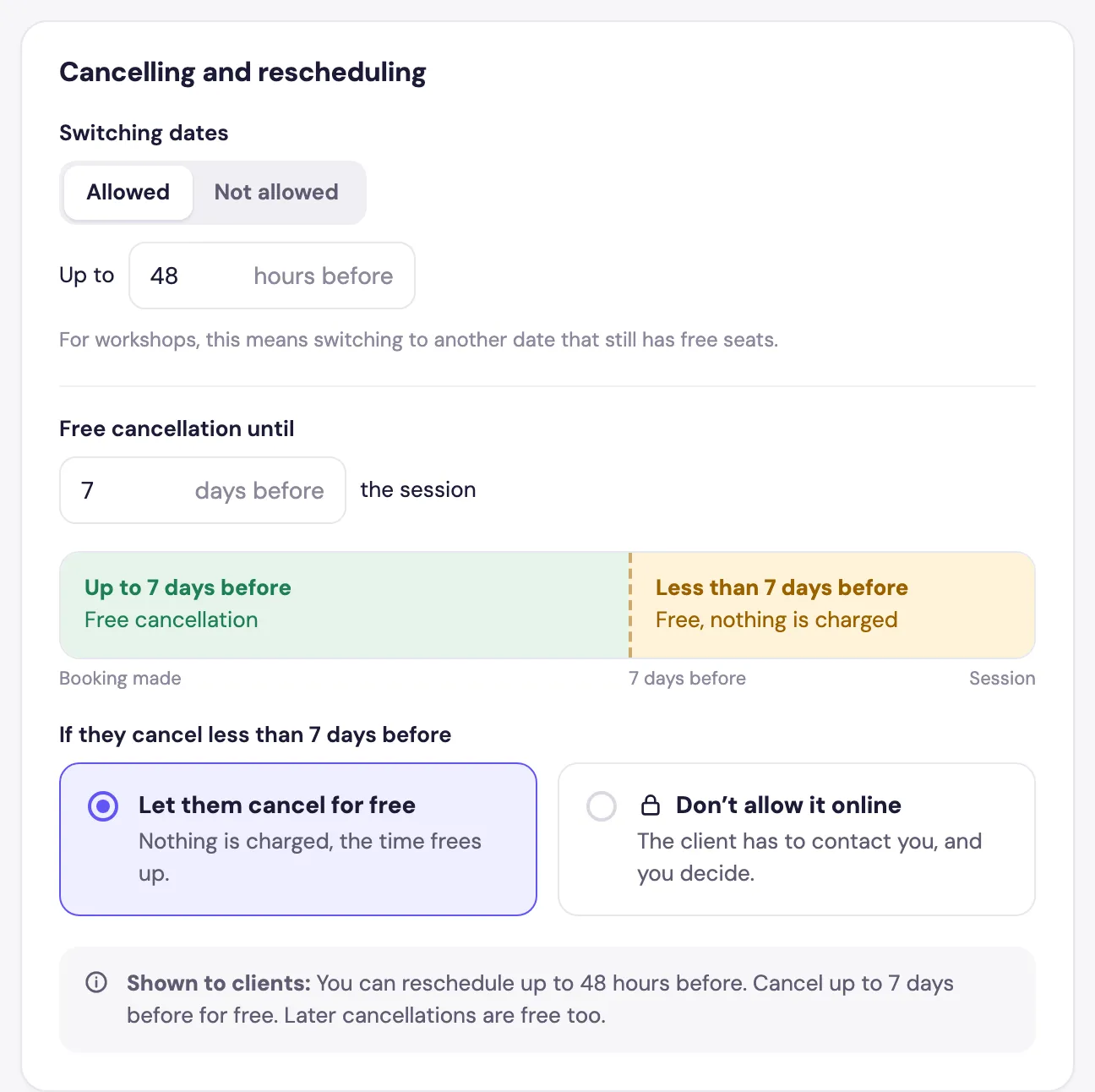
Clients see and accept this policy when they book. Here you can also set a Minimum notice and how far ahead people can book.
Step 7: Choose visibility and publish
On the Advanced tab, choose Public (shown on your booking page) or Private (only people with the link can book, which works well for a team or private group). Then click Publish.
Managing your dates
Click the workshop on the Packages page to open its card. Each date shows the seats booked, its status (Going ahead, Needs 2 more by 3 Dec or Full) and a Copy link button. Changes here apply straight away, with no need to edit the package.
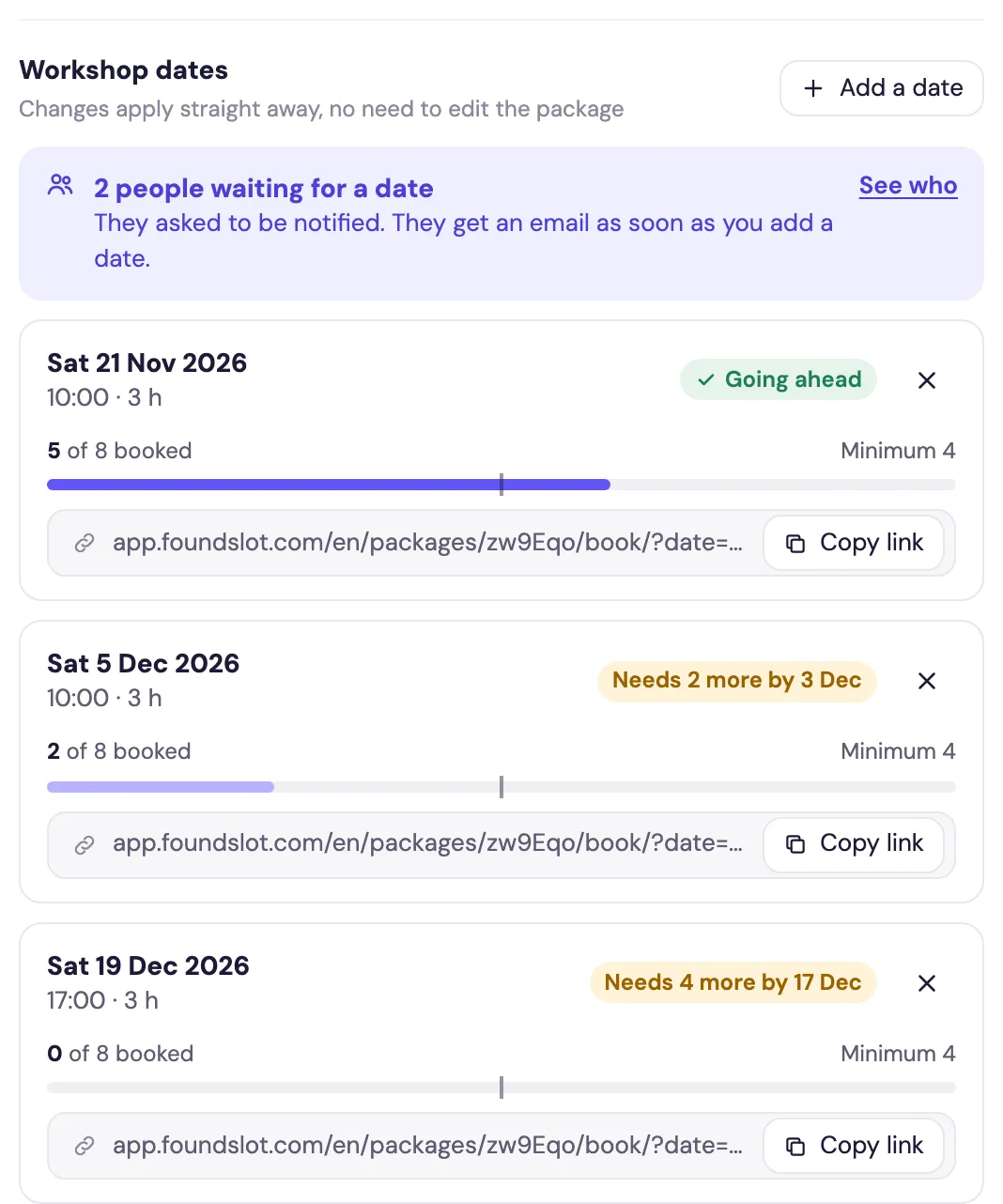
- Add a date: click Add a date, choose the date and time, then click Add date. It’s live immediately.
- People waiting: when no date has free seats, clients can ask to be notified. The card shows how many are waiting (See who lists them). Your next new date emails them all once.
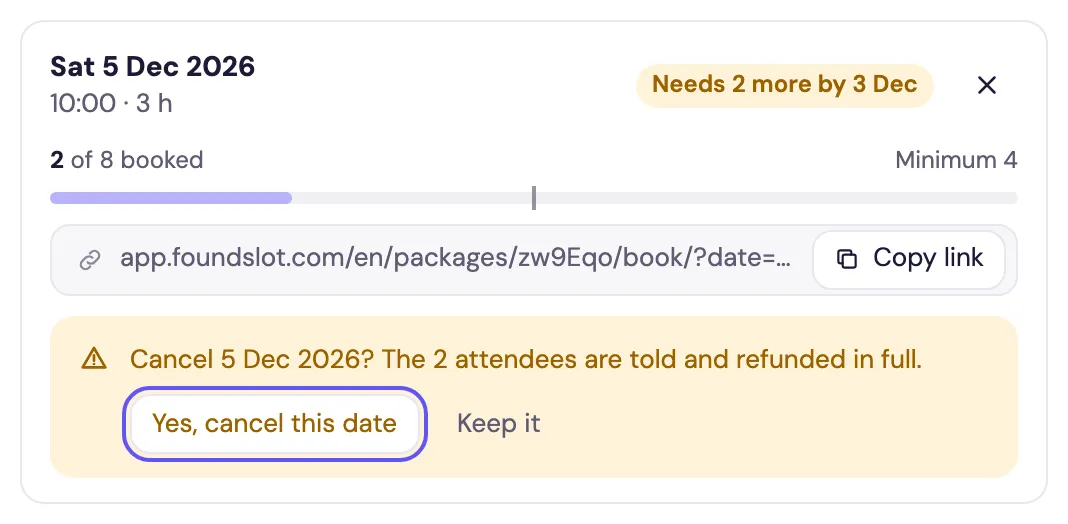
- Cancel a date: click the ✕. If people have booked, you’re asked to confirm, and every attendee is emailed and refunded in full. Dates with bookings can only be cancelled here, not in the editor.
Seeing who’s coming
In Bookings › Upcoming, each workshop date is one row. Click it to see the attendees, then Email all or Copy date link.
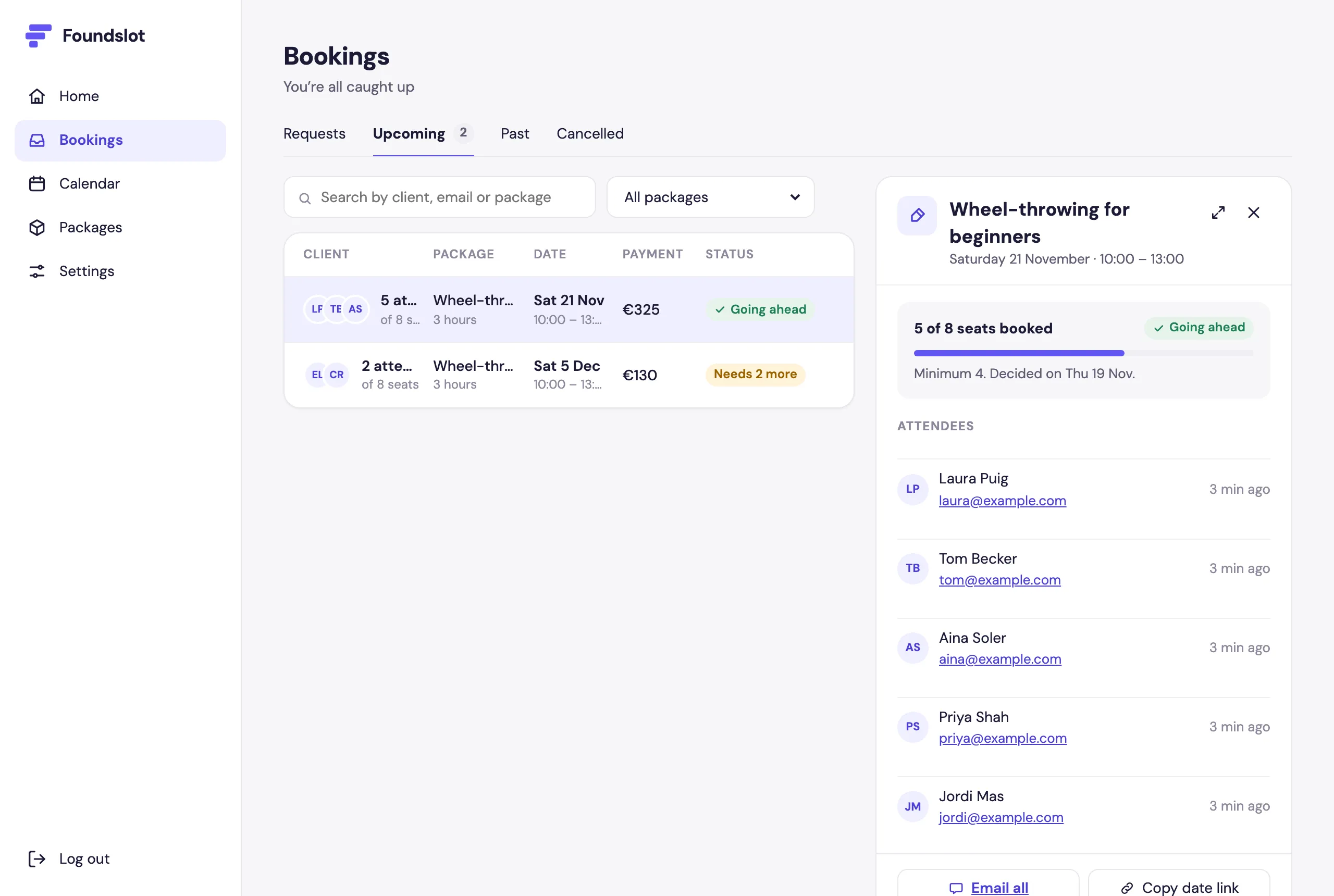
Workshop dates also appear on your Calendar and block that time for your other packages, even before anyone books.
What your clients see
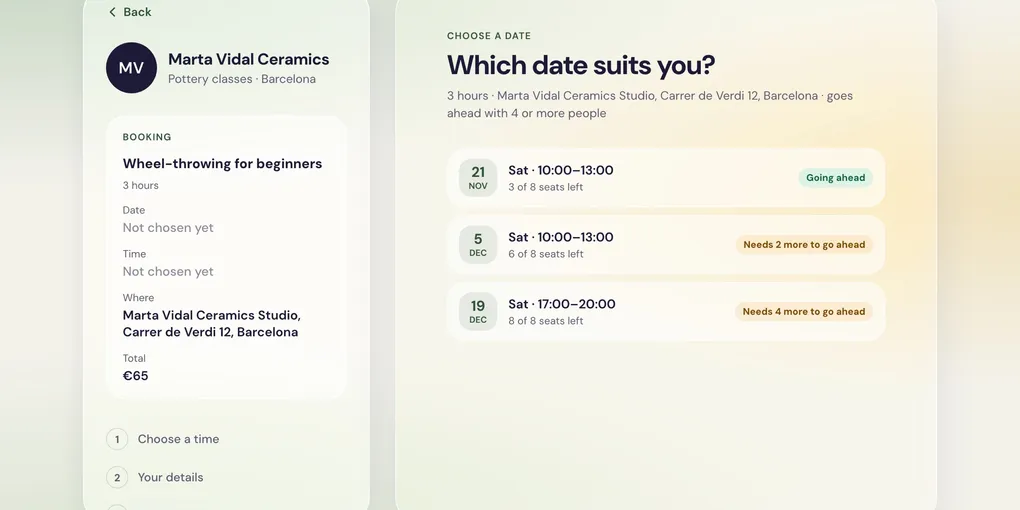
On your booking page, clients see the price per person, the next date and seats left. See dates lists every date with its seats and whether it’s going ahead.
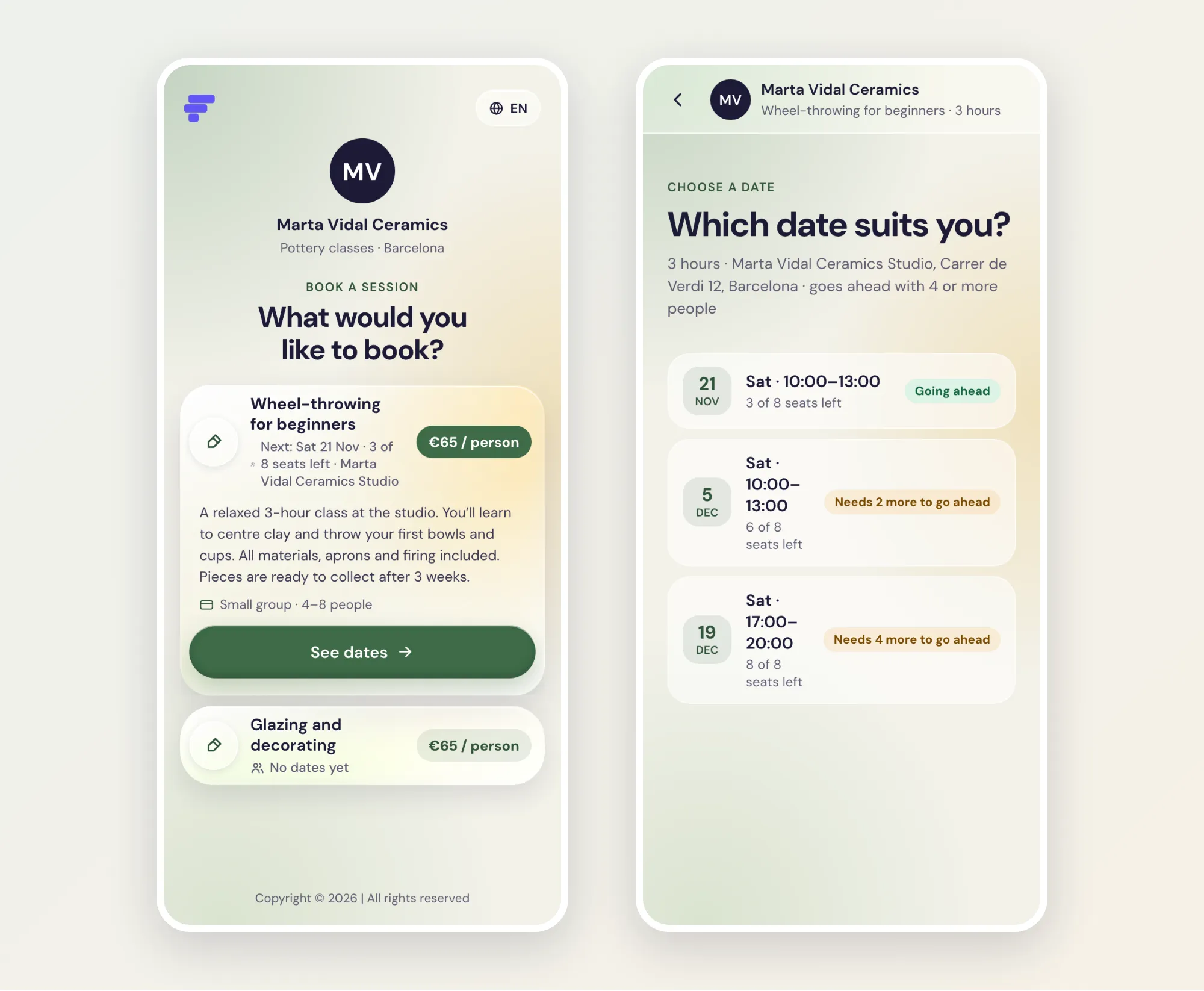
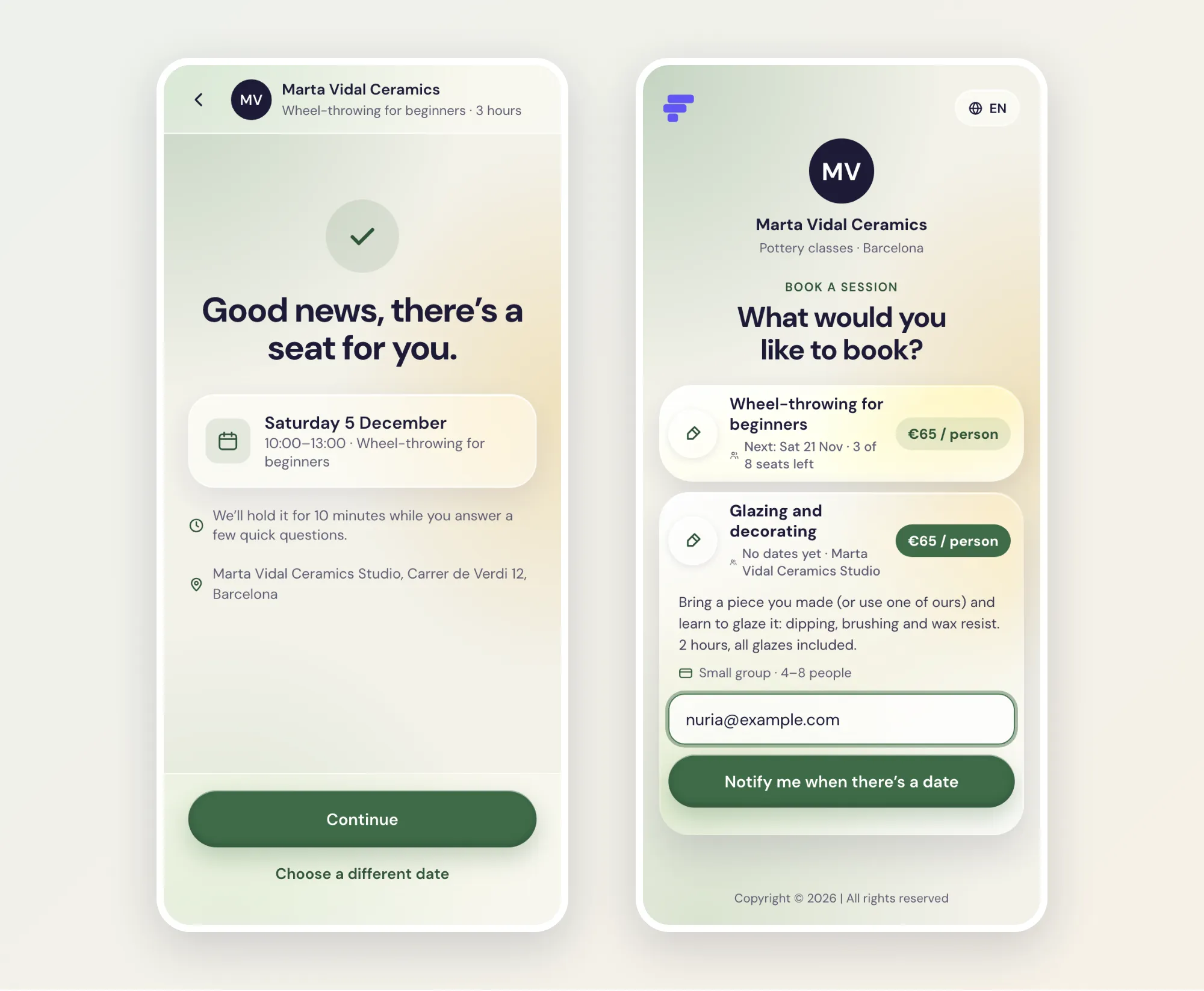
A date’s own link takes clients straight to that date (left). When no date has free seats, they can ask to be notified (right).