
How to Manage Your Packages in Foundslot
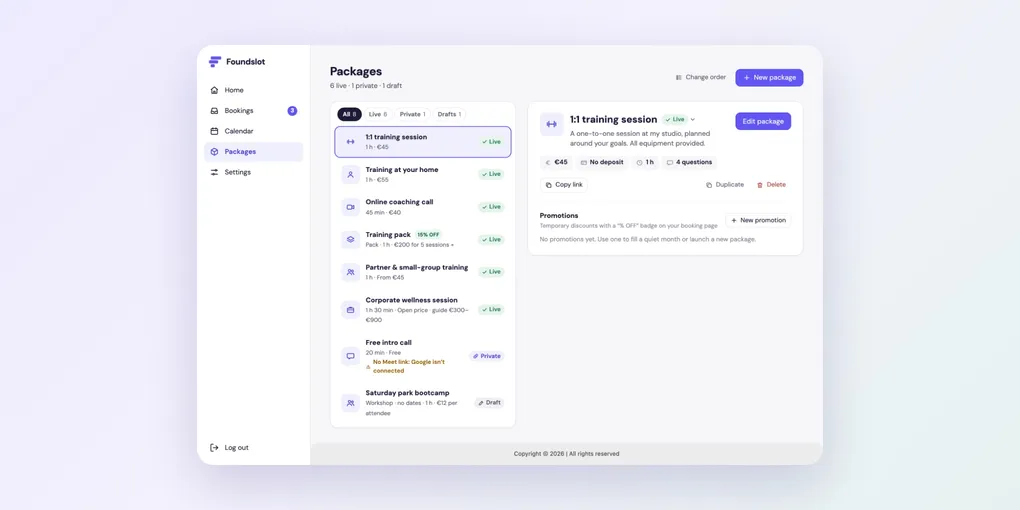
Everything about your packages is on the Packages page: the list on the left, and the selected package’s card on the right.
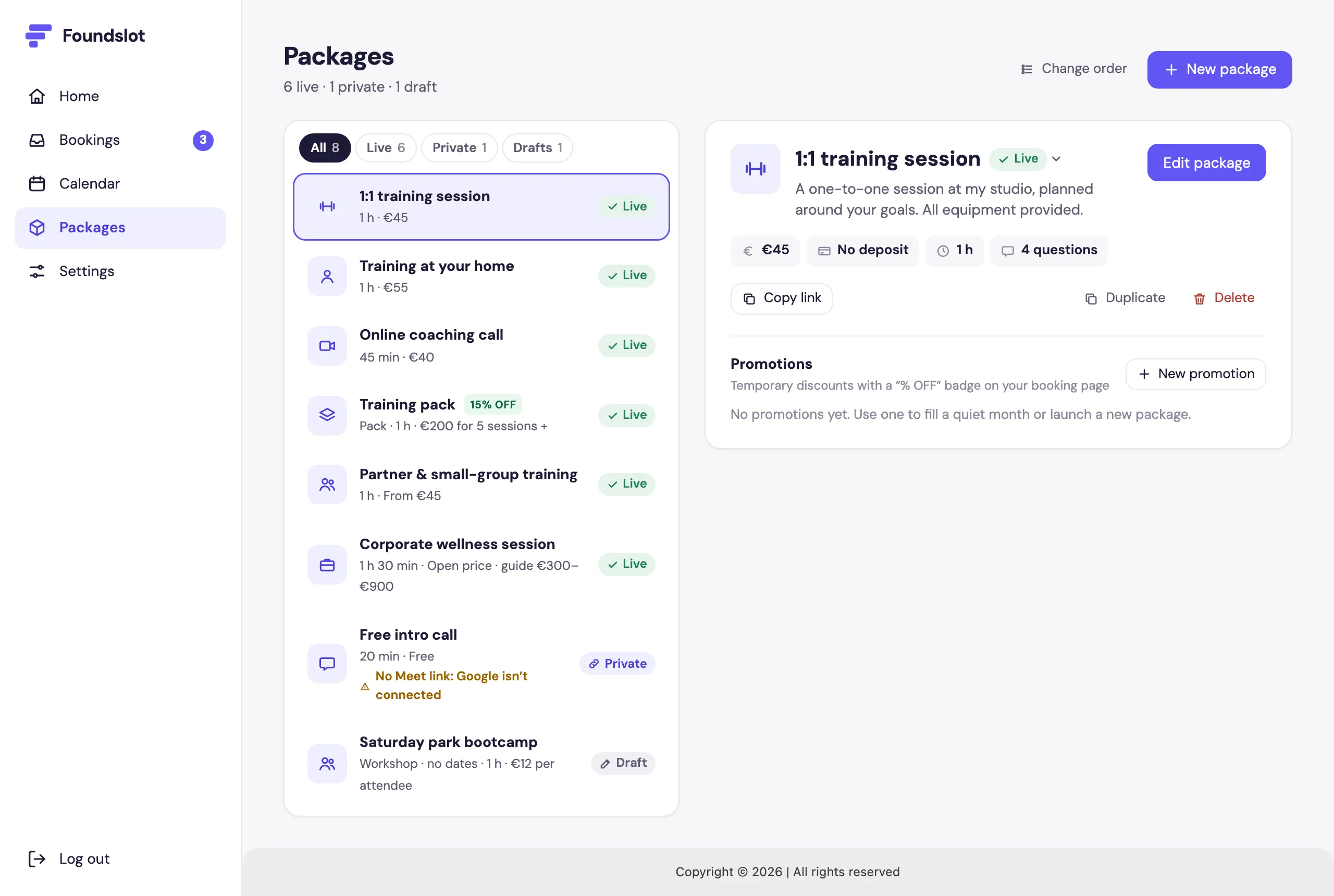
Use the filters at the top of the list (All, Live, Private, Drafts) to find a package quickly.
Live, Private or Paused
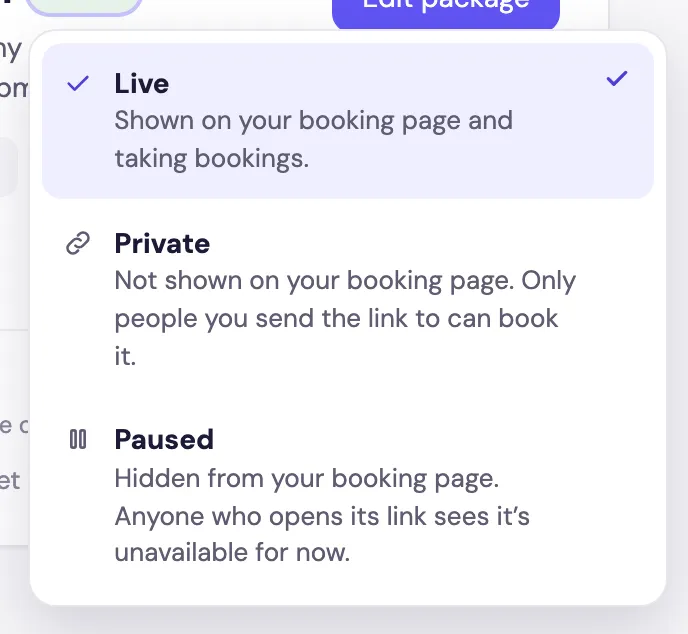
Click the status under the package’s name to change it:
- Live: shown on your booking page and taking bookings.
- Private: not on your booking page. Only people you send the link to can book it.
- Paused: hidden from your booking page. Anyone who opens its link sees it’s unavailable for now.
Pause a package
When you choose Paused, you can set a date to Resume automatically (handy for holidays or seasonal packages) and add a message for people who open its link. A preview shows what they’ll see.
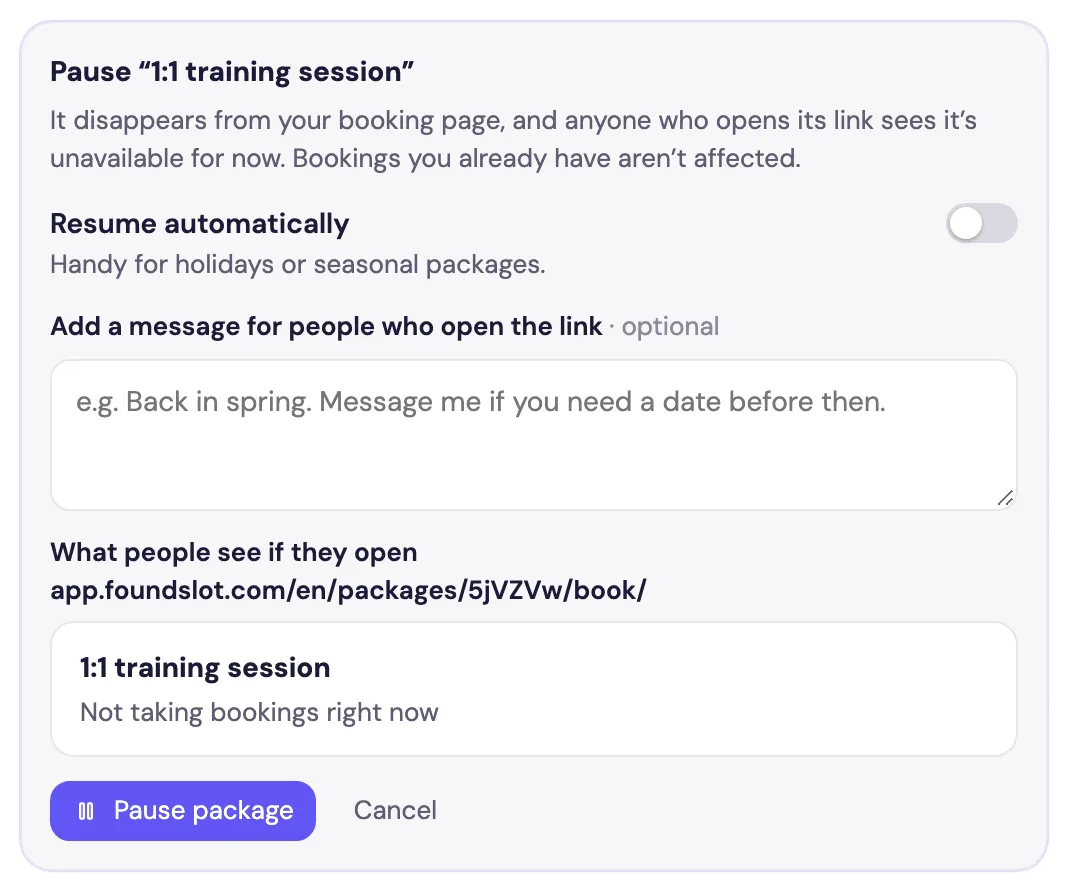
Bookings you already have aren’t affected.
Change the order
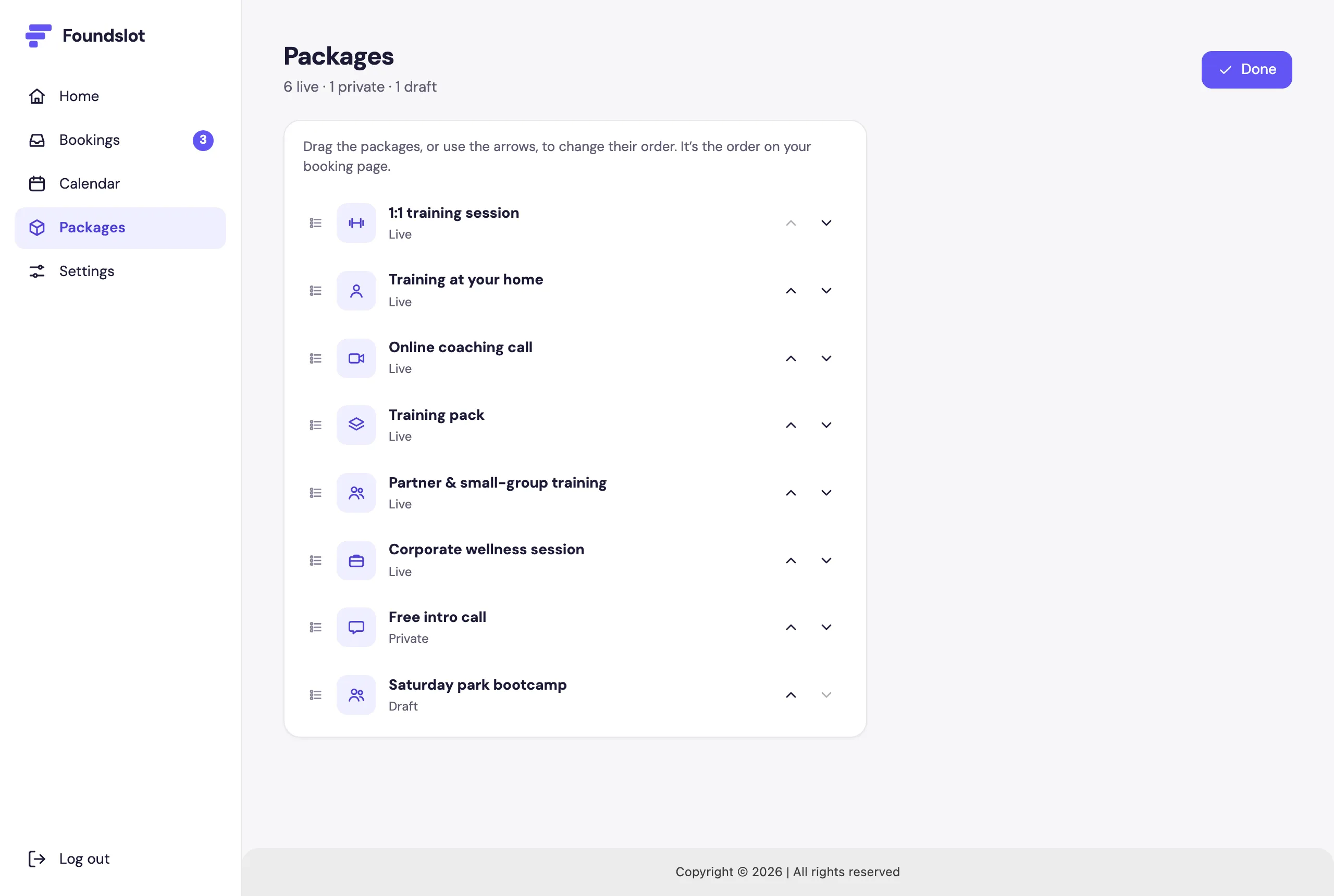
Click Change order, then drag the packages or use the arrows. It’s the order on your booking page. Click Done when you’re finished.
Duplicate or delete
- Duplicate creates a draft copy right after the original. It’s the quickest way to offer the same service in another place or at another price.
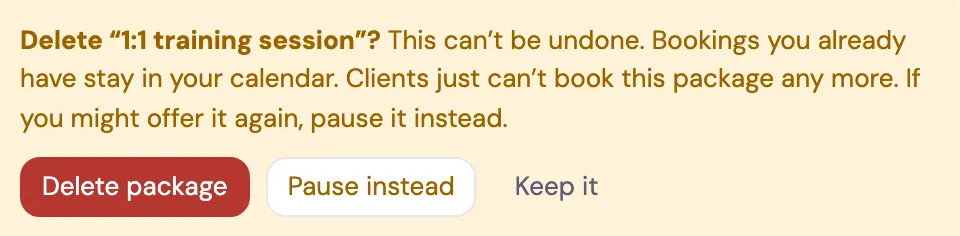
- Delete removes the package from your booking page and your list. It can’t be undone. Existing bookings stay in your calendar. If you might offer it again, choose Pause instead.
Frequently asked questions
Nothing. Bookings you already have stay in your calendar. Clients just can’t make new ones.
Two bookable (live or private) packages. They’re the first two in your list order, so change the order to choose which.