
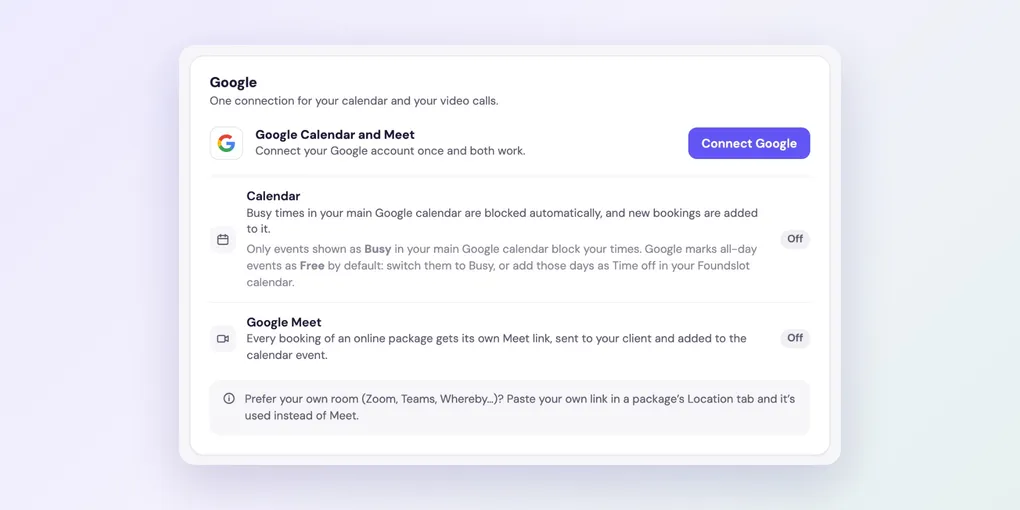
How to Connect Google Calendar and Google Meet
One Google connection does two things: it keeps your Foundslot and Google calendars in step, and it creates Google Meet links for online sessions.
Connect Google
Go to Settings › Integrations and click Connect Google. Sign in and allow access, and you’re sent back to Foundslot.
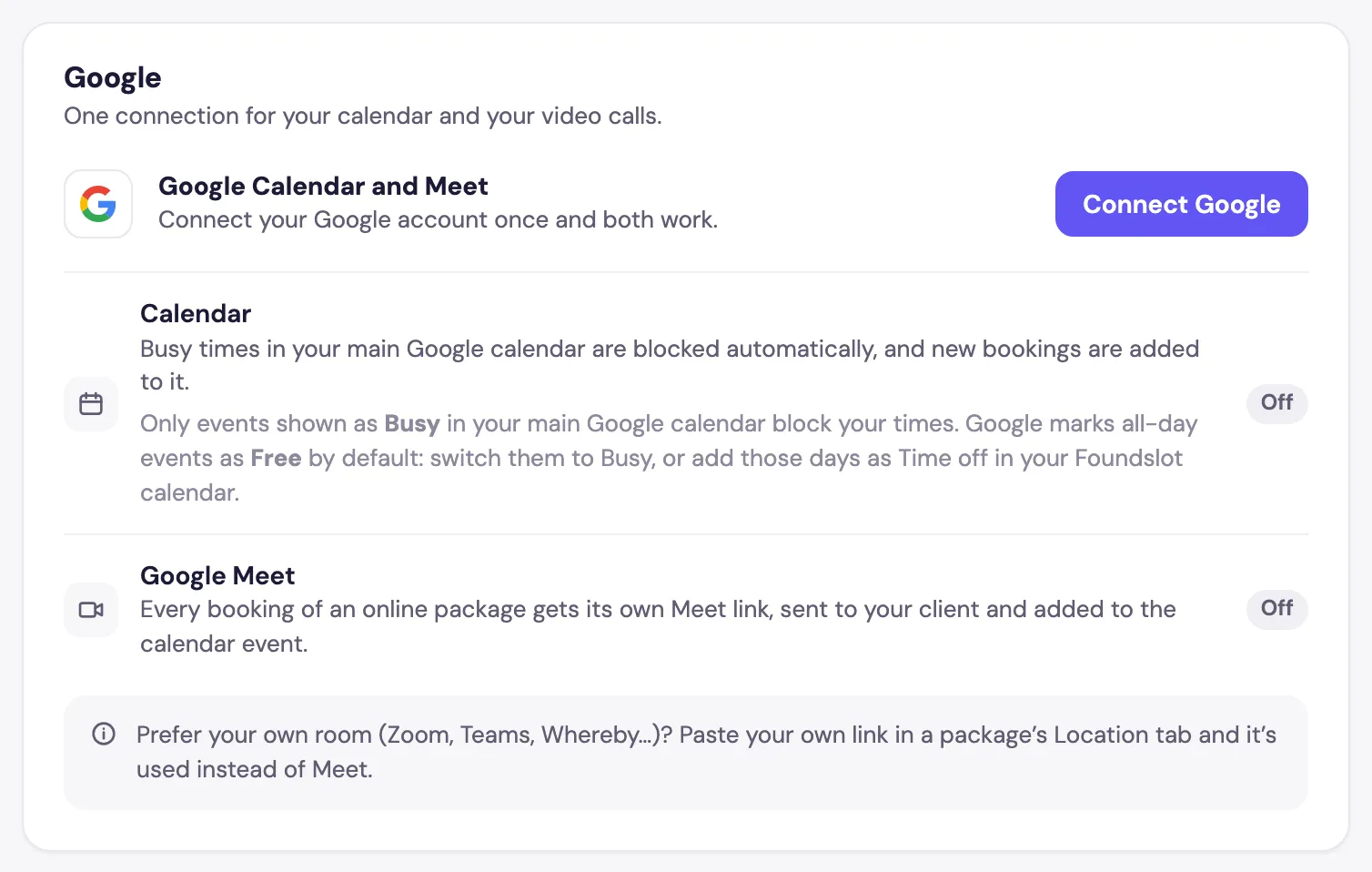
Then turn on what you want:
- Calendar: busy times in your main Google calendar block those times in Foundslot, and new bookings are added to it.
- Google Meet: every booking of an online package gets its own Meet link, sent to your client and added to the calendar event.
All-day events: Only events shown as Busy block your times. Google marks all-day events as Free by default, so switch them to Busy, or add those days as time off.
If Google isn’t connected
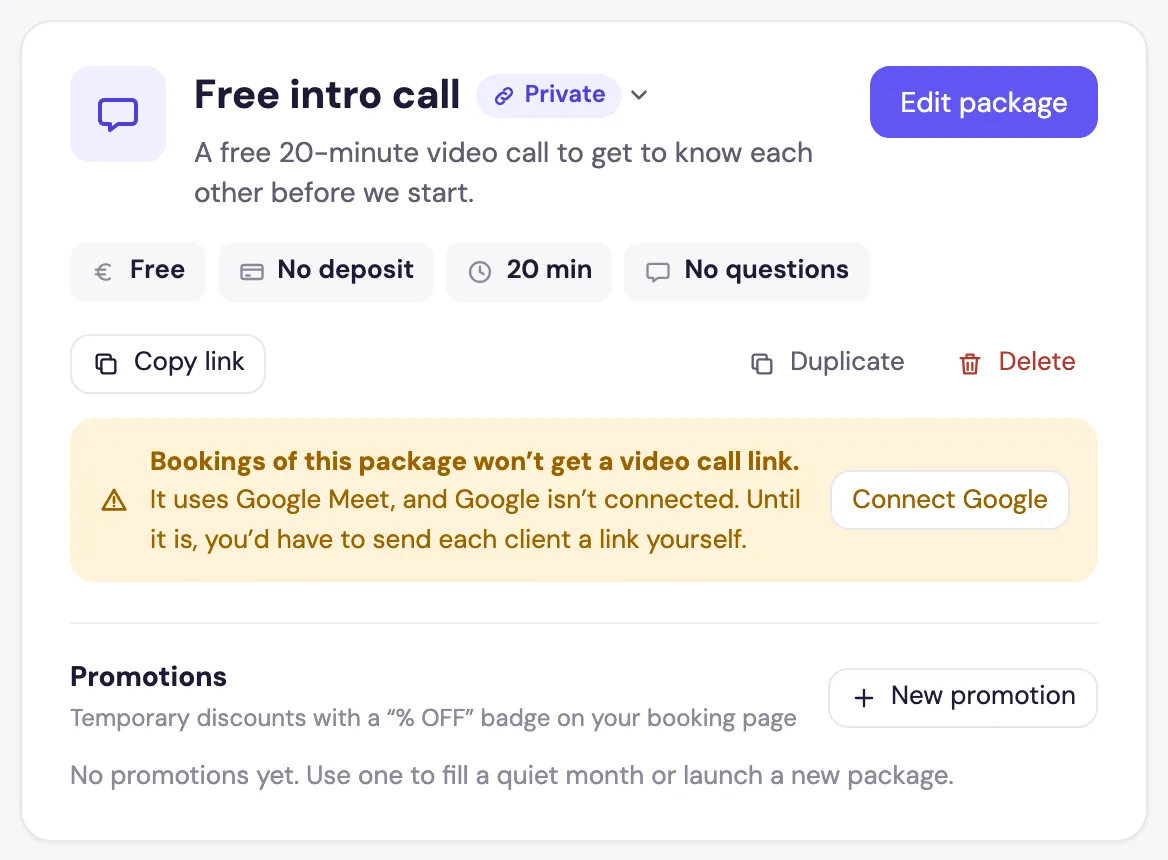
Online packages that use Google Meet show a warning on their card: their bookings won’t get a link, so you’d have to send each client one yourself. Home shows the same under Needs your attention.
Prefer Zoom, Teams or Whereby?
You don’t need Google for video calls. In the package’s Location tab, choose Online › My own link and paste your room’s link. See how to set where your sessions happen.